
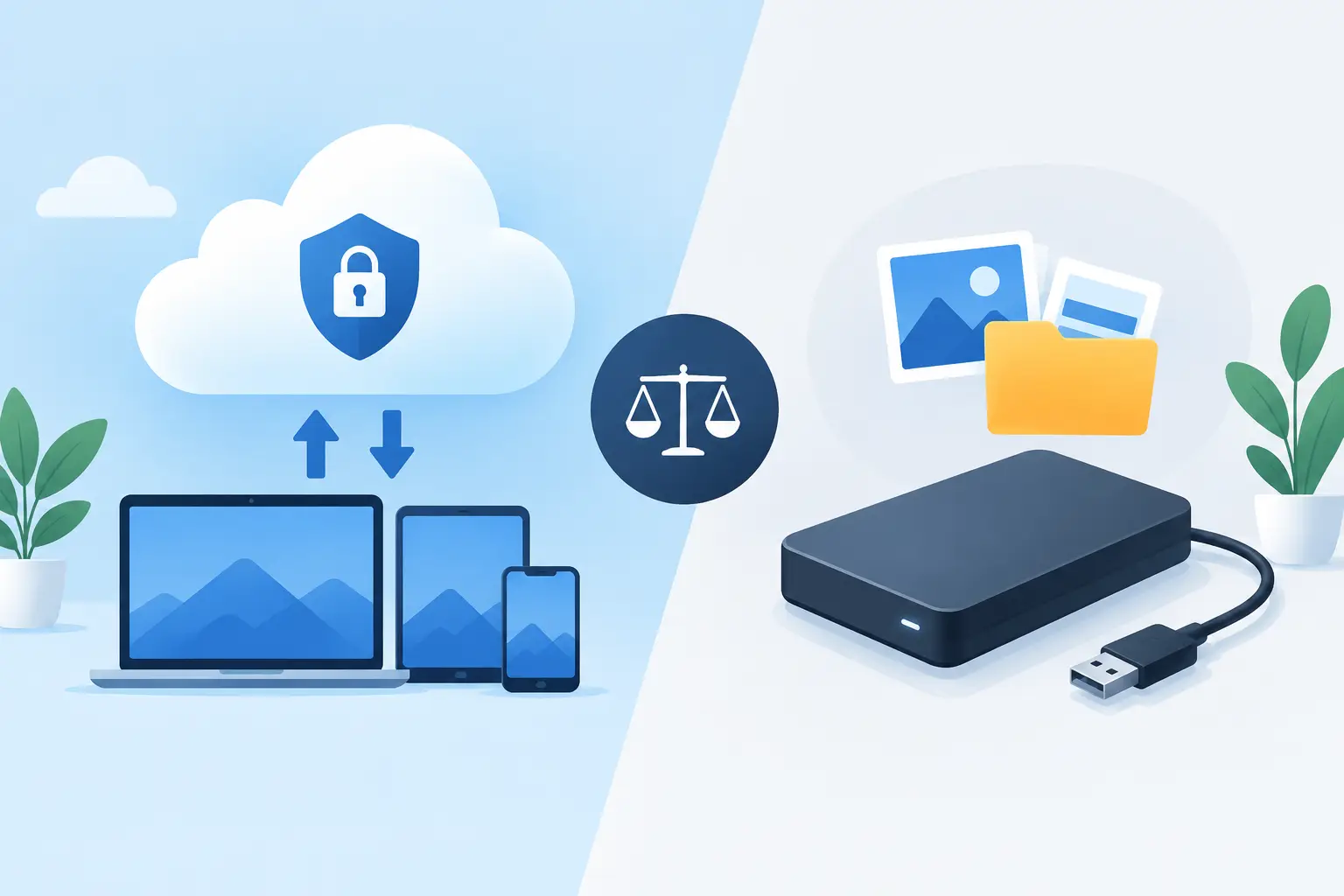
A failed hard drive rarely gives a homeowner or business owner a convenient warning. One moment the customer files, family photos, job estimates, tax records, or accounting data are there. The next, the computer cannot find them. The real question behind cloud backup versus external drives is not which option sounds more technical. It is whether your important data will still be available after a mistake, theft, fire, ransomware attack, or hardware failure.
For most North Texas homes and small businesses, the smartest answer is not choosing one and ignoring the other. It is building a backup plan with more than one layer. Each method protects against different problems, and each comes with trade-offs worth understanding before you need to recover a file under pressure.
Cloud Backup Versus External Drives: The Core Difference
An external drive is a physical storage device connected by USB or, in some setups, attached to your network. It can hold copies of files, full computer images, or both. You control the device, keep it nearby, and can restore large amounts of information quickly when it is working properly.
Cloud backup sends encrypted copies of selected data to secure offsite servers through your internet connection. Once configured, it can run automatically in the background. If your office has a flood, break-in, or electrical event that damages both the computer and the drive sitting beside it, the cloud copy is stored somewhere else.
That location difference is the big deal. An external drive protects you from a failing internal drive. Cloud backup protects you from a local disaster. Neither automatically solves every risk. A drive can be unplugged, damaged, misplaced, or forgotten. A cloud backup can take time to restore, depend on upload speeds, and cost a recurring monthly fee.
Why One Copy Is Not a Backup Plan
Saving files to an external drive is better than having no backup at all. But it becomes a weak plan if the drive is always connected, never checked, and kept in the same building as the computer.
Consider a contractor whose office computer holds current proposals, jobsite photos, invoices, and vendor records. If ransomware encrypts the computer and the connected backup drive, both copies may be unusable. If the office is burglarized and the computer and drive leave together, the same problem remains. If an employee accidentally overwrites a spreadsheet, a drive that only keeps the latest version may copy the mistake right along with everything else.
Cloud systems can offer version history, which means older copies of a file may remain available for a defined period. That can be a lifesaver after accidental deletion or ransomware. Still, version retention must be configured and monitored. A cloud account is not magic just because it has the word “cloud” on the label.
The practical benchmark is the 3-2-1 approach: keep at least three copies of important data, on two types of storage, with one copy stored offsite. For a small office, that often means the live files on the computer or server, a local backup on an external device, and an encrypted offsite cloud backup.
When External Drives Make Sense
External drives remain useful because they are fast, affordable, and under your immediate control. If a desktop computer fails but your recent backup drive is healthy, restoring hundreds of gigabytes locally is usually much faster than downloading that same amount over an internet connection.
They are especially useful for large files. Video projects, design assets, scanned archives, and database backups can take a long time to move to the cloud, particularly when a business has standard upload speeds. A local backup drive can also be valuable when internet service is temporarily unavailable.
However, an external drive needs discipline. It should be large enough for your data and backup history, encrypted if it contains sensitive information, and tested regularly. A drive that has not been opened in a year is not proof that your backups work. It is just a device with unknown contents.
For some households, rotating two encrypted drives can add protection. One stays at home for current backups, while the other is stored safely away from the house and swapped on a schedule. This can work, but it relies on someone remembering the schedule. Busy owners often discover the offsite drive is six months old when they need it most.
Where Cloud Backup Earns Its Keep
Cloud backup is built for consistency and distance. After initial setup, it can back up files automatically without requiring someone to plug in a drive every Friday. That matters for offices where everyone is focused on serving clients, managing crews, or keeping operations moving.
It is also a strong defense against site-wide loss. A fire, storm, burst pipe, or theft can remove every device in a building. With a properly configured cloud backup, your data can be restored to replacement equipment without needing to find a surviving local drive.
Security is another reason businesses choose managed cloud backup. Reputable services can encrypt files during transfer and while stored, use multi-factor authentication, and maintain redundant data centers. But the setup still matters. Weak account passwords, shared logins, and poor access controls can put data at risk no matter where it is stored.
Cloud backup should not be confused with file syncing. A synced folder is helpful for accessing current documents across computers, but syncing may immediately copy deletion, corruption, or ransomware changes to other connected devices. A true backup system retains recoverable versions and gives you a clear way to restore them.
Cost, Speed, and Recovery: The Real Trade-Offs
External drives usually cost less upfront. You buy the hardware once, although drives eventually wear out and need replacement. Cloud backup spreads the cost into a monthly or annual service fee based on storage, devices, retention, and business features.
The lowest price is not always the lowest cost. Think about the cost of losing a week of invoices, customer information, payroll records, or project files. Think about employees unable to work while someone tries to rebuild years of documents. A backup plan should be judged by recovery time as much as its subscription price.
Local drives generally win on speed for a large restore. Cloud backup wins when the local site is gone. The best recovery plan accounts for both situations. A quick local restore gets you productive after an isolated hardware problem. An offsite restore gives you a path forward after a wider disaster.
Your internet connection is a major factor. Backing up a few documents and photos is easy for most connections. Backing up terabytes of data, security footage, or media files may require careful scheduling, bandwidth planning, and possibly a hybrid setup. Businesses should also confirm whether their provider can restore data to a physical device when downloading everything would take too long.
Questions to Ask Before You Pick a Backup Method
Before choosing a service or buying another drive, get clear on what must be protected. Business owners often remember documents but overlook email archives, accounting software data, customer databases, browser-based applications, settings, and shared folders. Home users may forget photo libraries, scanned records, and files sitting on multiple computers.
Ask how often the data changes and how much lost work is acceptable. A business that enters orders all day may need frequent backups. A home computer with occasional personal use may need less aggressive scheduling, but it still needs an automatic process. Also decide how quickly you need to be operational again. Recovering one folder is different from rebuilding an entire office.
Finally, test a restore. Open a few backed-up files. Restore them to a safe location. Confirm they are current and usable. For a business, practice restoring the critical applications and data needed to process work. Backup success is measured at recovery, not when a dashboard says a job completed.
Build a Backup Plan You Can Trust
For most small businesses, a hybrid approach is the practical winner: local backup for fast recovery and encrypted cloud backup for offsite protection. For homeowners with irreplaceable photos and records, automatic cloud backup plus a periodic copy to an external drive offers similar peace of mind.
The details should match your actual work, not a generic checklist. TechXperts helps DFW businesses and households create backup systems that fit their devices, internet connection, security needs, and recovery goals. The goal is not to buy more storage than you need. It is to make sure the files that keep your life or business moving are recoverable when something goes wrong.
A backup is quiet when it is doing its job. That is exactly how it should be, right up until the day it saves you from starting over.

0 Comments