
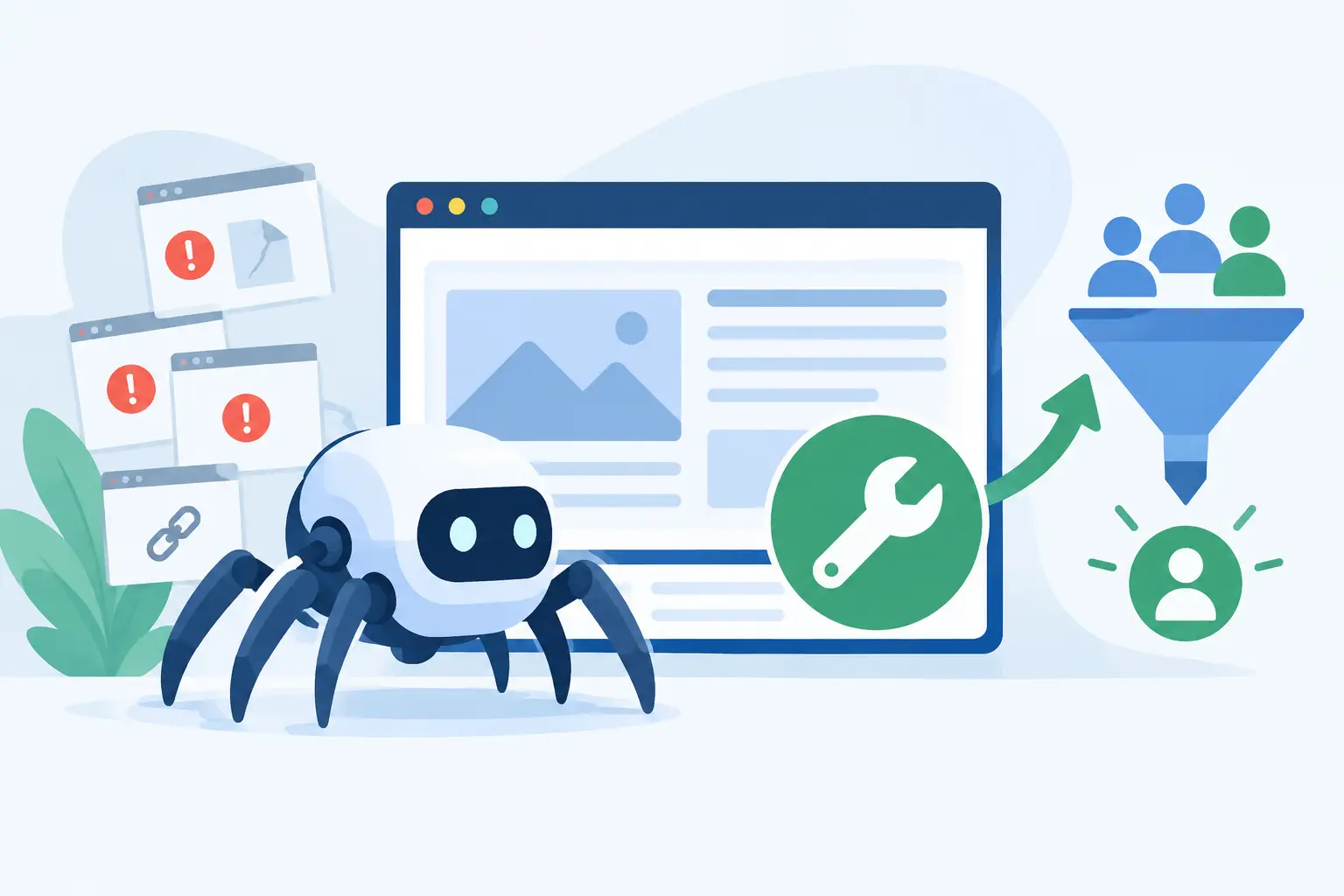
A website can look perfectly fine to your customers while Google is unable to reach key pages behind the scenes. That is why business owners need to fix website crawl errors before a slow loss of rankings turns into fewer calls, form submissions, and local leads.
For a North Texas contractor, professional office, restaurant, or service company, this is not a vanity metric. If Google cannot crawl your service pages, location pages, or updated content, it has less confidence in showing them to people searching for what you do. The good news: most crawl issues are fixable once you know what the error actually means.
What Website Crawl Errors Really Mean
A crawl error happens when a search engine bot tries to access a URL and does not get the response it expects. That could mean the page is missing, the server is unavailable, the page redirects incorrectly, or your own website settings are blocking the bot.
Not every reported error deserves an emergency response. A broken URL from an old campaign, a deleted employee bio, or a typo someone entered years ago may not affect the pages that bring in business. The priority is finding errors tied to important pages and figuring out whether Google is being blocked from content you want customers to find.
Google Search Console is usually the best starting point. Check its page indexing reports for URLs marked as not found, blocked, redirected, server errors, or crawled but not indexed. Then compare those URLs against your sitemap, internal navigation, and the pages that matter most to your business.
Start With the Errors That Affect Revenue
Do not try to repair every URL blindly. Start with your homepage, primary service pages, city or service-area pages, contact page, blog posts that earn traffic, and pages used in active advertising.
A good question is simple: if this page disappeared from Google tomorrow, would it cost the business visibility or leads? If the answer is yes, it belongs at the top of the repair list.
Also look for patterns. One isolated 404 error may be harmless. Hundreds of 404 errors after a redesign, however, usually point to a URL structure change that was not handled properly. A group of server errors can indicate a hosting, plugin, firewall, or resource problem rather than an issue with the individual pages.
Check the HTTP Status Code
Each URL sends a response code to browsers and search engines. These codes tell you a great deal about the problem.
A 200 status means the page loaded successfully. A 301 means the page permanently redirects, which is normally fine when an old URL has moved to a closely related replacement. A 404 means the page is not found. A 410 means it is intentionally gone. A 500-level status signals a server-side issue, such as a timeout, configuration conflict, or overloaded hosting environment.
If an important page returns a 404, restore it if the content should still exist. If it has moved, add a 301 redirect to the most relevant live page. Avoid redirecting every old URL to the homepage. That may feel like a quick cleanup, but it creates a poor experience and sends weak relevance signals to search engines.
Fix Broken Internal Links Before They Multiply
Internal links are the roads Google uses to discover your site. A broken menu item, footer link, button, image link, or blog reference can repeatedly send crawlers to dead pages.
Review navigation first because those links appear across many pages. Then check service pages, blog articles, and call-to-action buttons. If your website was redesigned or pages were renamed, old internal links are especially common.
Correct the link at its source whenever possible. A redirect can catch visitors arriving through an old external link, but updating your own website links gives Google a cleaner path and reduces unnecessary crawling.
This is also a good time to check for redirect chains. If Page A redirects to Page B, and Page B redirects to Page C, update links to point directly to Page C. One redirect is often acceptable. Several in a row waste time, slow down visitors, and make troubleshooting harder.
Make Sure You Are Not Blocking Google by Accident
Some crawl errors are self-inflicted. During a website build, a developer may block search engines so unfinished pages do not appear publicly. The problem comes when that setting remains in place after launch.
Review your robots.txt file, page-level noindex tags, and content management system search visibility settings. A robots.txt rule can block a whole section of the site. A noindex tag can allow Google to crawl a page but tell it not to include that page in search results. They solve different problems, so changing one will not necessarily fix the other.
Use caution here. Blocking low-value admin pages, duplicate filter pages, or private files can be appropriate. Blocking service pages, location pages, or core content is not. If you are unsure why a rule exists, document it before removing it. A hands-on review is safer than changing technical settings based on a guess.
Resolve Server Errors and Slow Responses
If Google reports 5xx errors, the server failed to provide a usable response. These errors can be temporary, but repeated failures need attention. They can result from limited hosting resources, a bad update, database trouble, a security tool blocking bots, or a plugin conflict.
First, try loading the affected URL yourself at different times of day. Then review hosting logs and website error logs for the same time period. If errors started right after an update, rollback or disable the conflicting component in a safe testing environment. If the site struggles during traffic spikes, the answer may be better hosting resources, caching, image optimization, or a review of what is consuming server capacity.
Security services deserve a closer look. They are valuable for stopping malicious traffic, but an overly strict firewall can mistake search bots for a threat. Confirm that verified Google crawlers are allowed while keeping suspicious traffic protections in place.
Clean Up Your Sitemap and Canonical Signals
Your XML sitemap should contain the live, indexable pages you want Google to discover. It should not be a storage closet for broken URLs, redirected pages, noindex pages, or thin duplicates.
After fixing major crawl issues, review the sitemap and remove URLs that no longer belong. Make sure the version submitted to Google matches the preferred domain and protocol for your site, such as the secure HTTPS version.
Canonical tags matter here too. A canonical tells search engines which version of similar pages should be treated as the primary one. If a service page points its canonical tag to the wrong URL, Google may ignore the page you want to rank. This is common after migrations, template changes, or copied page layouts.
For most small-business websites, each unique service or location page should reference itself as canonical unless there is a clear duplicate-content reason to designate another page. Do not use canonicals as a shortcut for weak content. If two pages serve the same purpose, combine them or make their purpose meaningfully different.
Recheck the Fix and Give Google a Clear Signal
Once you fix website crawl errors, test the affected URLs. Confirm they load correctly, return the right status code, and are not blocked by robots instructions or noindex settings. Use URL inspection tools in Search Console for high-priority pages and request indexing when appropriate.
Do not expect every report to update immediately. Google has to recrawl the page, and the timing varies based on the site and the issue. Keep an eye on indexing reports over the next several days or weeks, especially after a redesign, hosting move, or large content cleanup.
At TechXperts, we see this often: the visible website problem is only part of the story. A site may need technical cleanup, better page structure, and content that clearly explains its services before it can earn stronger local visibility. Crawl repairs get Google through the door. Useful, well-organized pages give it a reason to keep sending qualified customers your way.
Prevent Crawl Problems From Returning
Crawl errors often return after routine changes, not dramatic failures. A new page gets renamed without a redirect. An expired promotion stays in the navigation. A plugin update changes how URLs work. A staging setting is copied to the live site.
Build a quick monthly check into your website maintenance process. Review Search Console, scan for broken internal links, verify forms and key pages, and watch for unusual server errors. After major website work, test your most valuable URLs before considering the job finished.
Your website should work as hard as the people running your business. When search engines can consistently access the right pages, your marketing has a stronger foundation – and the next customer searching in DFW has a better chance of finding you.


0 Comments