
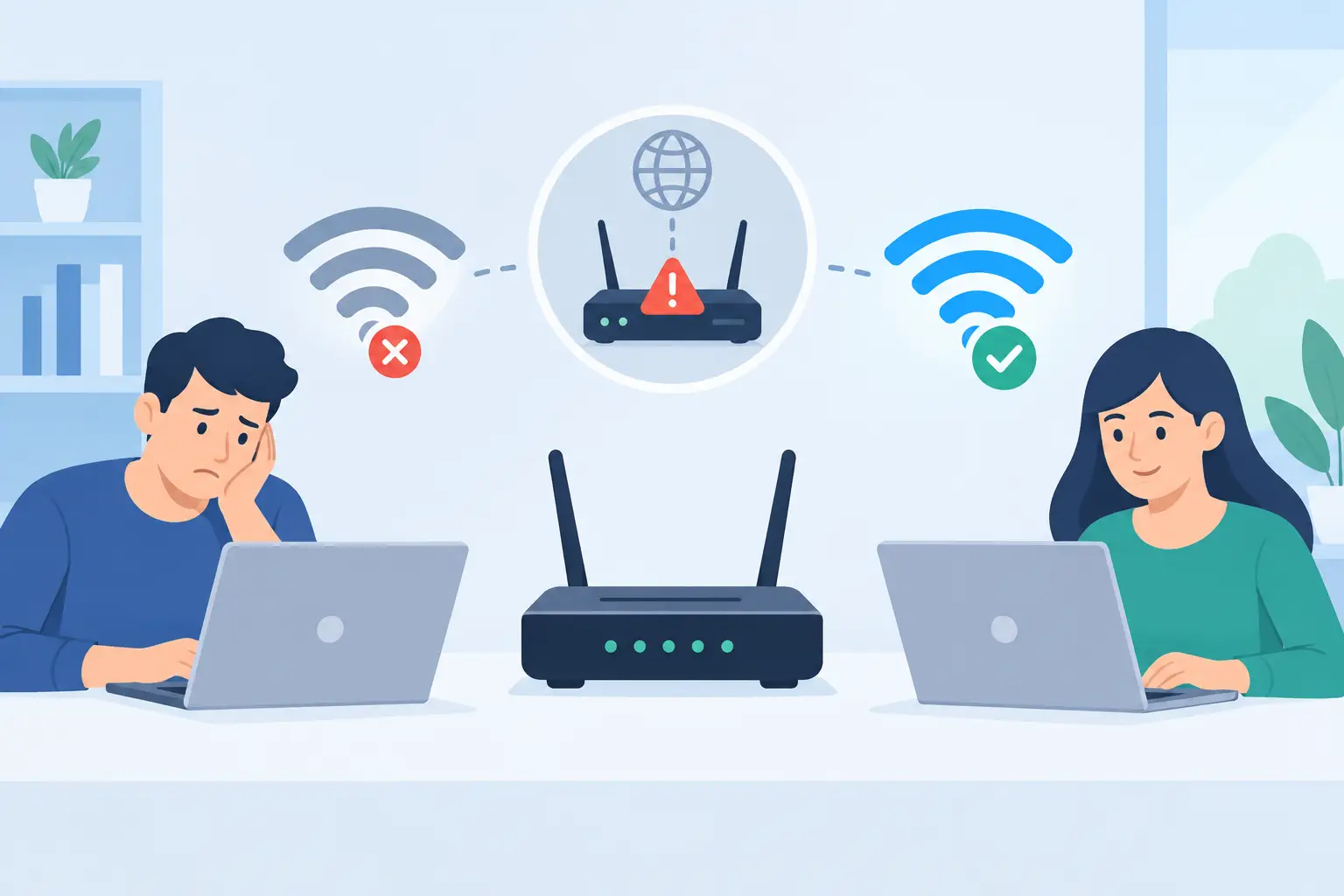
A video freezes during a client call. The card terminal drops offline at the worst possible moment. Or the Wi-Fi vanishes in the bedroom while it works perfectly in the living room. If you have asked, why does wifi disconnect, the answer is usually not just “bad internet.” The issue may be your provider, router placement, wireless interference, overloaded equipment, or a device that is struggling to stay connected.
For DFW homes and small businesses, the fastest fix starts with identifying where the connection fails. Is every device dropping, only one device, or only devices in a certain part of the building? That detail turns a frustrating mystery into a practical troubleshooting plan.
Why Does WiFi Disconnect at Home or Work?
Wi-Fi is the wireless connection between your devices and your router or access point. Your internet service is the connection from that equipment to the outside world. They are related, but they are not the same thing.
If the Wi-Fi symbol disappears or your device says it cannot join the network, you likely have a local wireless issue. If Wi-Fi stays connected but websites, cloud software, or email stop loading, the problem may be your internet provider, modem, router, or network settings.
A small office can make this harder to spot. One employee may be able to work while another loses access to shared files, cloud applications, printers, or point-of-sale tools. That does not automatically mean the internet is fine. It may mean one area has weak coverage, one access point is overloaded, or one device has a configuration problem.
The router needs a reset – but not always a replacement
Routers and modems are small computers that run continuously. Over time, they can slow down, lose a clean connection with the provider, or struggle with too many active devices. A proper restart can clear a temporary issue.
Unplug the modem and router, wait about 60 seconds, then power on the modem first. Give it time to reconnect before powering on the router. If the problem returns every few days, a restart is only masking the real cause. Aging equipment, a failing power adapter, heat, or incorrect settings may be behind the repeat outages.
Avoid hitting the factory reset button unless you know how to restore your network configuration. A factory reset can remove your Wi-Fi name, password, security settings, and custom business network setup.
Weak signal and poor router placement
Wi-Fi does not travel through every surface equally. Brick, concrete, metal, mirrors, dense insulation, appliances, and plumbing can weaken the signal. A router placed in a closet, cabinet, corner office, or behind a television starts at a disadvantage.
For a home, place the router as centrally as possible, elevated, and out in the open. For a business, the right answer may be several professionally placed access points rather than one powerful router at the front desk. Bigger buildings, warehouses, medical offices, restaurants, and spaces with multiple walls need coverage designed around the layout.
The 2.4 GHz band usually reaches farther but can be slower and more crowded. The 5 GHz band is generally faster but does not pass through walls as well. Newer equipment may also use 6 GHz, which can deliver excellent speed at closer range. There is a trade-off: the fastest band is not always the most reliable band across a large property.
Wireless interference and crowded channels
Your neighbors may be using the same wireless channels. So may Bluetooth devices, wireless cameras, older cordless equipment, baby monitors, and certain smart-home products. In busy apartments, neighborhoods, and commercial buildings, congestion can make a network appear to randomly disconnect.
Modern routers can select channels automatically, but automatic does not always mean optimal. A network assessment can reveal whether nearby networks are crowding the same channel, whether access points are competing with each other, or whether channel width is set too aggressively for the environment.
This is especially common when Wi-Fi works well early in the morning but becomes unreliable during business hours. More people arrive, more devices join, and the wireless airspace gets noisier.
When Only One Device Keeps Dropping Wi-Fi
If every device disconnects at once, look at the modem, router, provider, or building-wide Wi-Fi setup. If one computer, tablet, smart television, or other device is the only one dropping, start with that device instead.
First, forget the Wi-Fi network on the device and reconnect using the correct password. Confirm its operating system and wireless driver are current. Also check whether it is switching between a guest network, office network, extender, or hotspot with similar names.
Power-saving settings can also disconnect wireless adapters to conserve battery. This can be useful when mobility matters, but it is a poor fit for a workstation that needs stable access to cloud software, remote desktops, shared folders, or video meetings all day.
A device may also be too far from the router. Before changing settings, test it near the main access point. If it stays connected nearby but fails at a distance, you have confirmed a coverage problem rather than a device problem.
Internet Outage or Wi-Fi Problem? Check Before You Call
When the connection drops, do a quick comparison. Check one device connected by Wi-Fi and, if available, another connection method such as a wired desktop. Then look at the modem and router status lights.
Use this simple sequence:
- If wired and wireless devices both lose internet access, check for a provider outage or modem issue.
- If wired devices work but Wi-Fi devices fail, focus on the router, access points, signal range, or interference.
- If only one device fails, troubleshoot that device’s saved network, adapter, updates, and power settings.
- If the issue happens in one room or area, investigate coverage and physical obstructions.
- If it happens at the same time each day, look for network congestion, automated backups, heavy uploads, or an equipment schedule.
For business owners, timing matters. A nightly cloud backup can use significant upload capacity if it is not configured carefully. A security camera system, large file synchronization job, or software update can create the same effect. These services are valuable, but they need to be planned around the available bandwidth and the work your team must do during the day.
Small-Business Wi-Fi Needs More Than a Password
A consumer-grade router may be fine for a small household with light use. It may not be enough for an office with staff devices, guest Wi-Fi, cloud phone systems, tablets, printers, cameras, payment terminals, and connected equipment.
Business Wi-Fi should separate internal operations from guest access. Guests should not be able to see office devices or shared resources. Staff should have reliable coverage where they actually work, not only near the router. Network equipment should also be secured, updated, and documented so a minor outage does not turn into hours of lost productivity.
Redundancy is worth considering when internet access directly affects revenue. A backup connection can keep critical operations moving when the primary provider has an outage. It is not necessary for every business, but it is often a smart investment for offices that depend on online scheduling, payments, cloud systems, or remote staff.
Fixes That Last Instead of Temporary Workarounds
Repeated disconnects are a signal to look beyond rebooting. Start by documenting the pattern for a few days: time of day, location, affected devices, error messages, and whether Wi-Fi or internet access actually failed. That information helps isolate the cause quickly.
Then evaluate the equipment. An older router may lack the capacity and security support needed for modern workloads. An extender might fill a dead zone but can reduce speed or introduce another point of failure. In many cases, a properly designed mesh system or wired access points delivers a more dependable result than stacking extenders around the building.
For local homeowners and businesses, TechXperts can assess coverage, interference, equipment health, network security, and the way your team actually uses technology. The goal is not to sell more hardware than you need. It is to build a network that supports work, customers, streaming, smart devices, and growth without constant disconnects.
The next time your Wi-Fi drops, resist the urge to blame the internet immediately. Notice what failed, where it failed, and who else was affected. Those three answers usually point straight to the fix – and a connection you no longer have to think about.


0 Comments