
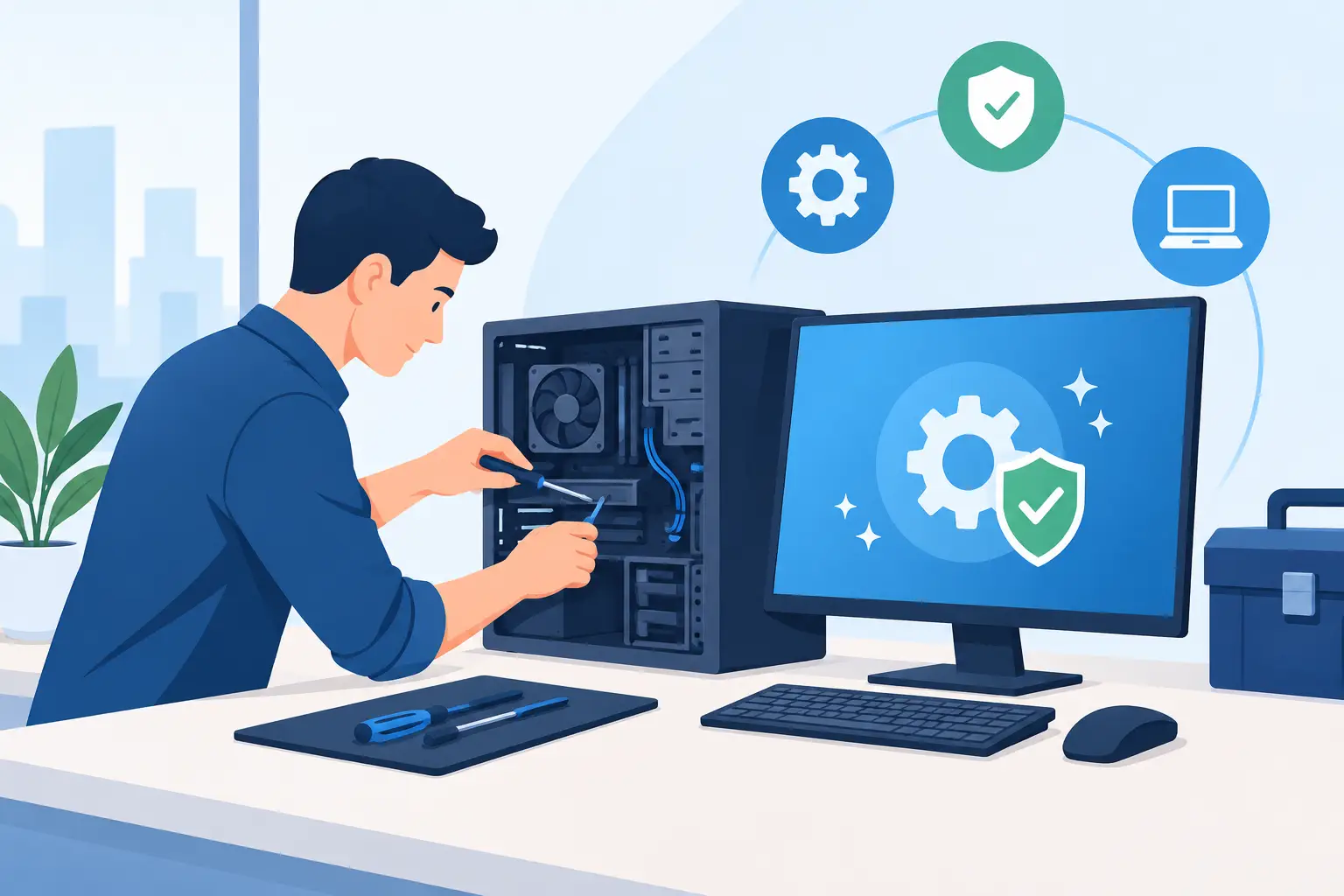
A computer rarely fails at a convenient time. It freezes when payroll is due, refuses to open a customer file before a meeting, or displays a ransomware notice just as the workday gets moving. Regular computer maintenance is how DFW homes and small businesses avoid turning small warning signs into expensive interruptions.
The goal is not to endlessly tune settings or buy a new machine every few years. Good maintenance keeps systems secure, organized, backed up, and ready for the work they need to do. For a home office, that may mean protecting family photos and tax records. For a growing business, it means staff can serve customers instead of waiting for a spinning cursor.
What Computer Maintenance Really Covers
Computer maintenance is a routine process, not a one-time cleanup. It includes software updates, security checks, storage management, backup verification, physical cleaning, and reviewing whether the machine still fits the job. Each task is simple in principle. The problem is that busy people tend to postpone them until something breaks.
That delay has a cost. An outdated operating system can leave a security hole open. A nearly full drive can slow daily work and cause software errors. A backup that has not been checked may look reassuring right up until it fails to restore the file you need.
For small businesses, maintenance also reaches beyond individual computers. Shared folders, Wi-Fi, printers, cloud accounts, employee access, and backup systems all affect whether the office can function. One neglected device or weak password can create a much larger issue than a single slow workstation.
Keep Updates Controlled, Not Ignored
Updates are not glamorous, but they close security gaps and fix known bugs. Operating system updates, browser updates, business software updates, and security software updates should all be part of a planned routine.
That does not mean installing every update in the middle of a busy day without thought. Businesses using specialized software should schedule updates after hours or test major changes on one system first. An accounting program, design tool, or industry-specific application may need compatibility checks before a major operating system change.
The practical approach is to enable automatic security updates where possible and choose a regular maintenance window for larger updates. For a small office, that might be one evening each month. Reboot systems afterward. Many updates do not fully protect the machine until it restarts.
Treat Backups Like a Recovery Plan
Saving files to a cloud-synced folder is helpful, but syncing is not always a true backup. If a file is accidentally deleted, overwritten, or encrypted by ransomware, that unwanted change can sync too. A real backup gives you older, recoverable copies.
A dependable plan follows the 3-2-1 principle: keep three copies of important data, on two different types of storage, with one copy stored away from the main location. For many small businesses, this means local backup for fast recovery plus encrypted cloud backup for protection from theft, fire, hardware failure, or a severe security incident.
The key word is recoverable. Once a quarter, restore a few files and make sure they open correctly. If your business relies on a server, shared storage, or critical software database, test how long a full recovery would take. Knowing that answer before an emergency gives owners a realistic continuity plan instead of a guess.
Prevent Viruses Before They Reach the Office
Most infections do not begin with a dramatic movie-style hack. They begin with a believable invoice attachment, a fake delivery notice, a reused password, or a website that looks almost legitimate. Good security combines technology with habits.
Every computer should have current security protection, a firewall, and user accounts that do not give everyone unrestricted administrative access. Business email should use multifactor authentication, especially for Microsoft 365, Google Workspace, banking, payroll, and cloud storage accounts. A password manager can make unique, long passwords practical without asking people to memorize dozens of combinations.
Employee training matters just as much. Staff should know to pause before opening unexpected attachments, entering credentials from an emailed link, or approving a payment change. The right response is not fear. It is verification. A quick call to a vendor using a known number can stop a costly fraud attempt.
Free Up Space and Remove What Is Dragging You Down
A slow computer is not always old. It may be overloaded with temporary files, unused applications, too many startup programs, or a drive that is close to full. These problems build gradually, which is why people often do not notice the decline until work becomes frustrating.
Start by checking available storage. Large downloads, duplicate photos, old installers, and outdated project files can consume more space than expected. Archive records according to your business retention needs before deleting anything important. For home users, move large media collections to dependable external or cloud storage, then verify they transferred correctly.
Next, review what launches when the computer starts. Some programs need to run in the background. Many do not. Reducing unnecessary startup items can improve boot time and leave more resources available for the applications that actually matter.
Be cautious with free cleanup utilities that promise instant speed. Some are aggressive, bundled with unwanted software, or encourage risky registry changes. Cleaning up storage and startup items is sensible. Deleting unfamiliar system files is not.
Do Not Ignore Physical Maintenance
Dust, pet hair, and restricted airflow can make a computer run hot. Heat causes fans to work harder, reduces performance, and can shorten the life of internal components. A machine that suddenly gets loud, feels unusually hot, or shuts down under normal use deserves attention.
Keep computers off the floor when possible, especially in workshops, retail areas, or homes with pets. Make sure vents have room to breathe and are not pressed against a wall or covered by papers. Use compressed air carefully to clear exterior vents, or have a technician perform a more thorough cleaning when buildup is heavy.
Power protection is worth considering too. A quality surge protector can help guard against power spikes, while a battery backup can give an office time to save work and shut down safely during an outage. The right setup depends on the equipment and how disruptive even a short interruption would be.
Build a Maintenance Schedule People Will Actually Follow
The best schedule is one that fits your operation. A home computer may only need a monthly check and a quarterly backup test. A business handling client data, financial records, or multiple employee accounts needs more frequent review.
A practical monthly routine includes checking that updates completed, confirming backups ran, reviewing available storage, and looking for security alerts. Every quarter, test file restoration, remove unused user accounts, review installed software, and check whether key systems are protected by multifactor authentication. Once a year, evaluate hardware age, warranty coverage, storage needs, and whether your network still supports the way your team works.
Write the schedule down and assign ownership. In a small business, “someone handles it” often means no one handles it. If no internal employee has the time or confidence, outsourced IT support can provide the accountability and documentation that keeps maintenance from slipping.
When a Slow System Is a Bigger Warning
Repeated crashes, unexplained pop-ups, missing files, network dropouts, and constant low-storage warnings are not normal annoyances. They are signals to investigate before the issue affects customers or destroys data. The same is true when an employee says a system has been slow for weeks. That is useful information, not a complaint to postpone.
Sometimes the fix is straightforward: remove unwanted software, replace a failing drive, improve Wi-Fi coverage, or correct a backup setting. Other times, the real answer is a broader change, such as moving files to a properly managed cloud system or replacing equipment that no longer supports secure updates. Throwing money at a patch may be wasteful if the system is already past its useful life.
For North Texas businesses that need a hands-on partner, TechXperts can help turn scattered fixes into a maintenance plan that protects productivity, data, and customer service. The right plan should be customized, plain-English, and built around how your people actually work.
A well-maintained computer should fade into the background. That is the point: fewer surprises, less lost time, and more attention available for the work, customers, and goals that cannot wait.


0 Comments