
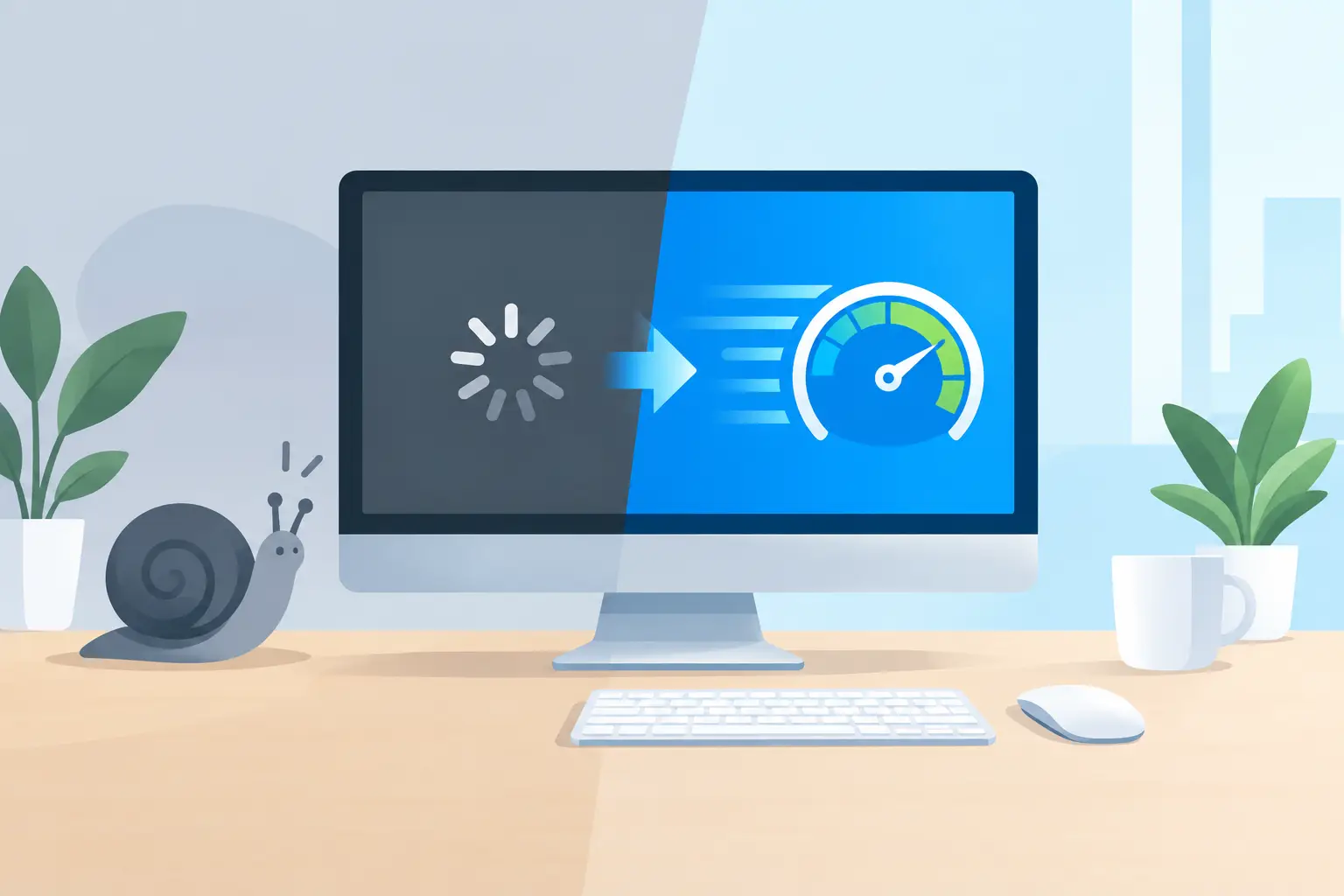
A desktop that takes ten minutes to open email is not a minor annoyance. For a home office, front desk, contractor’s shop, or growing DFW business, it turns every task into a delay customers can feel. The good news is that you can often speed up a slow desktop without replacing the whole system – but the fix depends on what is actually causing the slowdown.
The fastest path is not downloading a random “PC cleaner” or closing every program in sight. It is checking the few areas that most often drain performance, then making targeted changes that protect your files and your workflow.
Start by Finding What Is Using the Computer
Before changing settings, notice when the desktop feels slow. Does it crawl only at startup? Does it freeze when several browser tabs are open? Is it slow all day, even with no applications running? These details narrow the problem quickly.
On a Windows desktop, press Ctrl + Shift + Esc to open Task Manager. Review the Processes tab and look at CPU, Memory, Disk, and Network usage. A number near 100% for several minutes can point to the bottleneck.
High CPU use can come from a program stuck in a loop, a browser overloaded with tabs, an update running in the background, or malicious software. High memory use usually means the computer does not have enough available RAM for the applications being used. Disk activity that stays maxed out can indicate a nearly full drive, a failing hard drive, too many background services, or antivirus activity. The goal is not to shut down every process you do not recognize. Windows needs many background processes to work correctly. Instead, identify the apps consistently consuming resources and determine whether they are necessary.
Remove Startup Clutter First
Startup programs are one of the most common reasons a desktop feels tired before the workday even begins. Many programs install themselves to launch automatically, even when there is no real need for them to run all day.
In Task Manager, select Startup apps. Disable nonessential programs with a high startup impact. Examples may include chat apps, game launchers, music players, printer utilities, cloud applications you do not use, and software update helpers. Leave security software, hardware drivers, and tools you know your business relies on enabled.
This is a trade-off. Disabling a cloud sync tool means files may not update until you open that app. Disabling a communications program means you may not see messages immediately. For most small offices, it makes more sense to keep only business-critical tools at startup and open everything else when needed.
Restart the desktop after making changes. A restart clears temporary memory, finishes certain updates, and gives you a clean view of whether startup was the real issue. It is simple, but desktops that run for weeks without restarting often become noticeably less responsive.
Free Space and Check the Drive
A nearly full system drive can make Windows feel painfully slow. The operating system needs free space for updates, temporary files, virtual memory, and normal application activity. As a working rule, keep at least 15% to 20% of the main drive free when possible.
Open Settings, then System and Storage, to see what is consuming space. Temporary files, old downloads, duplicate photos, outdated installers, and files left in the Recycle Bin are common culprits. Delete what you no longer need, but do not treat cleanup as a substitute for a backup plan. If a folder matters to your home or business, make sure it is protected before removing or moving files.
The type and health of the drive matter just as much as its available space. Older spinning hard drives are slower by design and can become unreliable as they age. A desktop that takes a long time to boot, makes unusual clicking noises, hangs while opening files, or reports disk errors needs attention quickly. That is a data-protection problem before it becomes a speed problem.
For many older desktops, replacing a mechanical hard drive with a solid-state drive can make the biggest day-to-day difference. Startup times, application launches, and file searches can improve dramatically. It will not fix a weak processor or insufficient memory, but it is often a better investment than replacing a computer that is otherwise a good fit for the job.
Scan for Malware and Unwanted Software
Malware is not always obvious. Sometimes it shows up as intrusive pop-ups or suspicious browser redirects. Other times, it quietly uses processing power, changes search settings, collects information, or installs extra programs that slow everything down.
Run a full scan using a reputable, current security tool. Make sure Windows updates and antivirus definitions are current first. Then review installed applications and browser extensions for anything unfamiliar, especially software added around the time the slowdown began.
Be skeptical of pop-up warnings that claim your desktop is infected or that offer a one-click performance fix. Many are designed to sell unnecessary software or persuade users to grant remote access. A legitimate security alert does not need to pressure you into acting in seconds.
For a business desktop, a virus cleanup should also trigger bigger questions. Are staff members using separate logins? Are important files backed up automatically? Is multifactor authentication enabled where available? A cleaned computer is helpful, but preventing the next incident protects more time and money.
Add Memory When the Workload Calls for It
Memory, also called RAM, is the workspace your desktop uses while programs are open. If memory runs low, Windows starts leaning more heavily on the drive. That is when switching between a spreadsheet, browser, accounting software, and email can turn into a frustrating wait.
Task Manager can show whether memory usage remains near its limit during normal work. If it does, adding RAM may help. This is especially true for desktops used for bookkeeping, large spreadsheets, design work, video meetings, cloud applications, or staff members who regularly keep many browser tabs open.
More RAM is not automatically the answer. If the computer has enough unused memory but its disk is always at 100%, memory upgrades may not solve much. If the processor is maxed out during a specific application, that workload may simply exceed what the desktop was built to handle. Good troubleshooting avoids spending money on parts that will not address the actual bottleneck.
Do Not Blame the Desktop for a Network Problem
A slow cloud application, delayed web page, or file that takes forever to download may be a network issue rather than a desktop issue. If multiple people in the office report the same delay, test the connection before changing individual machines.
Look for Wi-Fi dead zones, an overloaded router, unstable internet service, old network equipment, or large backup and sync jobs consuming available bandwidth. Wired connections are often more consistent for stationary office desktops, particularly for accounting systems, shared files, and cloud-based business tools.
It also helps to separate the complaint. If local applications and saved files open quickly but websites lag, focus on the network. If everything is slow, including opening the Start menu or folders on the desktop, the problem is more likely inside the machine.
Keep Windows and Essential Software Current
Updates can be inconvenient, especially when a desktop insists on restarting at the worst moment. Still, ignoring updates for months can cause performance issues, security gaps, and conflicts with newer applications.
Set updates to install outside business hours where possible. Review pending updates rather than repeatedly postponing them. Keep essential software current too, including your browser, accounting tools, and the applications your team uses every day.
Avoid piling on optimization utilities. Multiple antivirus products, registry cleaners, driver update tools, and browser add-ons can create more problems than they solve. Windows already includes many useful maintenance features. The cleanest desktop is usually the one with fewer unnecessary background tools, not more.
Know When Repair Beats Replacement
A slow desktop does not always need to be retired. If the device supports current Windows versions, has a healthy processor, and meets the needs of its users, an SSD upgrade, added memory, malware remediation, and a proper cleanup can extend its useful life.
Replacement makes more sense when the desktop cannot run supported software, has recurring hardware failures, struggles with the core applications your business depends on, or costs too much in lost staff time. An office computer is not a bargain if employees spend half an hour every day waiting for it.
Before any major repair or replacement, verify your backups. Confirm that files can actually be restored, not merely that a backup icon says the job ran. Then plan the change around the person using the desktop, the programs they need, and the data they cannot afford to lose.
When the cause is unclear, a hands-on diagnosis can save hours of trial and error. TechXperts helps North Texas homes and small businesses identify whether a slow system needs cleanup, hardware attention, malware remediation, network work, or a smarter long-term setup. A desktop should support the work you are trying to do, not become another task on your list.

0 Comments