
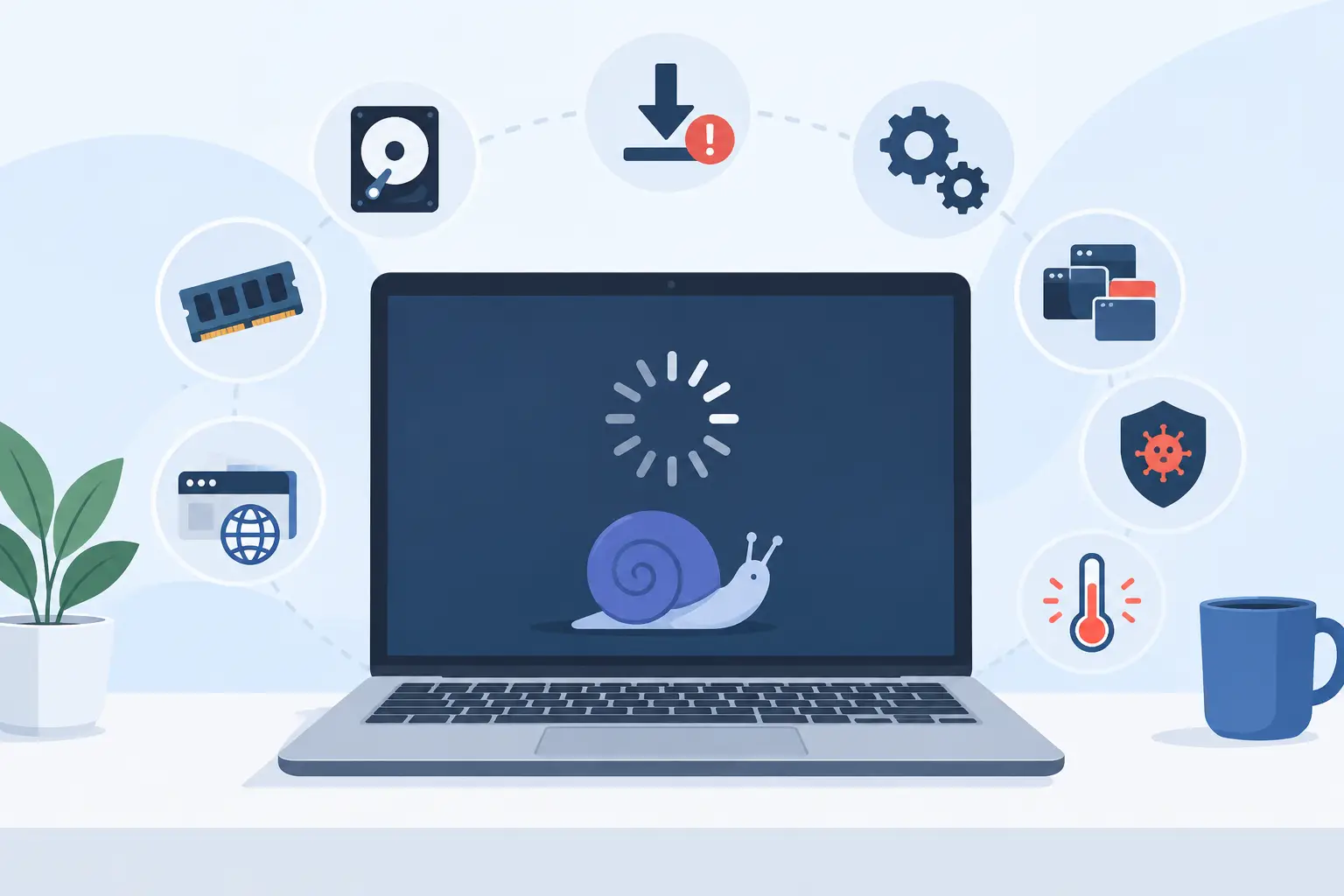
A computer that takes five minutes to open a spreadsheet is not just annoying. For a homeowner, it turns simple tasks into a chore. For a small business, it means delayed estimates, frustrated staff, missed customer calls, and work that keeps piling up. So, what causes slow computers? Usually, it is not one dramatic failure. It is a combination of software clutter, limited resources, aging equipment, security threats, and sometimes a network problem that looks like a computer problem.
The good news is that many slowdowns can be diagnosed without guessing. The key is noticing when the machine slows down. Is it sluggish from the moment it starts? Does it freeze only when opening certain programs? Is the internet slow while everything else works normally? Those details point toward very different fixes.
What Causes Slow Computers Most Often?
A computer has a limited amount of processing power, memory, storage space, and cooling capacity. When too many demands hit one of those areas, performance drops. Older machines can still do useful work, but they may struggle with newer operating systems, cloud-based software, large files, video meetings, and security tools running at the same time.
For North Texas homes and small offices, the most common issue is simple buildup. Programs get installed, browser tabs multiply, files accumulate, and startup apps quietly claim resources every time the computer turns on. Then a routine update or one new business application pushes an already-stressed system over the edge.
Too Many Programs Start With the Computer
Many applications add themselves to the startup list automatically. Cloud storage, chat tools, printer utilities, update managers, music apps, and other background programs may all launch before you even open your first email.
This is why a computer can feel slow immediately after startup but improve somewhat later. The machine is busy loading services you may not need right away. Review startup applications and disable nonessential items, but do not randomly turn off security software, system services, or anything you do not recognize. A careful review is better than an aggressive cleanup that creates a new problem.
Low Storage Space Makes Everything Work Harder
Storage drives need free space to manage temporary files, updates, browser caches, and normal system operations. When a drive is nearly full, the computer can become noticeably sluggish, especially during updates or while working with large documents and photos.
A full drive is common in offices that keep years of scanned paperwork, project files, downloads, and duplicate attachments on individual computers. Moving older files into an organized cloud system or managed backup solution can help, but only after confirming the files are protected and easy to retrieve. Deleting records just to create space is rarely the right business decision.
Too Little Memory for the Work Being Done
Memory, often called RAM, helps a computer keep active programs ready to use. If you have several browser tabs open, a video meeting running, accounting software open, and a large spreadsheet calculating in the background, limited memory can force the system to constantly shuffle data back to the drive. That creates lag, freezing, and long waits when switching between programs.
Adding memory can be a cost-effective improvement on compatible machines. However, it is not a universal cure. If the processor is outdated or the storage drive is failing, more memory alone will not restore dependable performance.
Malware and Unwanted Software Can Drag Down Performance
Malware does not always announce itself with a ransom message or a flashing warning. Some infections work quietly in the background, using processing power, changing browser settings, displaying ads, harvesting information, or downloading more unwanted files.
Adware and browser extensions are especially common sources of trouble. If search results look strange, pop-ups appear unexpectedly, the homepage keeps changing, or the computer runs hot even when no work is open, treat it as a security concern. Free cleanup tools may catch some problems, but serious infections need thorough remediation. Removing the visible symptom without finding the source can leave a business exposed.
Keep in mind that legitimate security software can also slow a computer if it is misconfigured, outdated, or competing with another security product. Running multiple antivirus programs does not provide double protection. It can create conflicts and consume resources.
An Aging or Failing Drive Changes Everything
Traditional hard drives have moving parts, which means they wear out. A failing drive may cause unusually long boot times, programs that hang, files that take forever to open, unexplained error messages, or clicking noises. Those signs deserve immediate attention because performance is no longer the only issue. Your data may be at risk.
Replacing an older hard drive with a solid-state drive can make a dramatic difference in startup time and everyday responsiveness. Still, speed should not be the only goal. Before any drive work, make sure important files are backed up and that the backup can actually be restored. A backup that has never been tested is a hope, not a plan.
Overheating Forces a Computer to Slow Itself Down
Computers generate heat, and they are designed to reduce performance when temperatures rise too high. Dust buildup, blocked vents, failed fans, aging thermal material, or a machine stored in a tight cabinet can all cause overheating.
This kind of slowdown often appears after the computer has been running for a while. It may become noisy, warm to the touch, or unexpectedly shut down. Do not ignore it. Continued overheating can shorten the life of internal components. Cleaning and airflow checks can help, but repeated overheating needs a proper inspection rather than a quick blast of compressed air.
Sometimes the Computer Is Fine – The Network Is Slow
A slow website, delayed cloud file sync, choppy video calls, and long download times can make people blame the computer. Sometimes they are right. Often, the real issue is the network.
Weak wireless coverage, an overloaded router, outdated network equipment, interference, internet service problems, or too many connected devices can all create delays. In a small business, a poor network can affect every workstation at once. That is a useful clue. If several people suddenly experience slow cloud applications or dropped calls, investigate the connection before replacing computers.
A wired connection may solve the problem for fixed workstations, while improved wireless placement and business-grade equipment may be the better answer for a mobile office. The right solution depends on the building, the number of users, and what the team needs to do online.
Updates, Browsers, and Background Tasks Add Up
Operating system updates are necessary for security and compatibility, but they can temporarily consume significant resources. A computer may feel slow while downloading, installing, or indexing after an update. The same is true of large cloud sync jobs, full security scans, and automatic backup activity.
Browsers can be another hidden resource drain. Each open tab uses memory, and certain extensions can slow browsing or create security risks. If web-based work is lagging, test with fewer tabs and disable extensions you no longer use. Clear out duplicate browser add-ons and make sure the browser itself is current.
For businesses, scheduling intensive scans, updates, and backups outside peak work hours can reduce disruption. That is one of the practical advantages of having technology managed instead of waiting until everyone is already stuck.
When Is It Time to Repair, Upgrade, or Replace?
The answer depends on the age of the computer, the type of work it supports, and the underlying cause. A relatively recent machine with a full drive, too many startup apps, or a weak wireless connection may only need cleanup and configuration. A system with a failing drive, recurring malware, overheating, or outdated components may need more involved service.
Replacement becomes the smarter choice when the computer cannot reliably run the software your work requires, cannot receive supported security updates, or needs repeated repairs that cost more than a properly configured replacement. For a business owner, the real calculation is not just hardware price. It is the cost of lost employee time, delayed customer service, and uncertainty around important files.
A Better Way to Prevent Slowdowns
The best performance strategy is routine maintenance, not emergency cleanup. Keep software updated, remove programs nobody uses, leave adequate free storage, use dependable security protection, and verify backups regularly. Give employees clear guidance on file storage, downloads, suspicious emails, and the approved tools they should use.
For small offices, standardizing computers and cloud workflows makes support easier and reduces the mystery when something changes. TechXperts can help local DFW businesses identify whether slow performance is coming from the computer, the network, security issues, or the way the office is set up to work.
A slow computer is often sending an early warning. Address it while it is still a productivity issue, before it becomes a data-loss event or a full workday lost to downtime.


0 Comments