
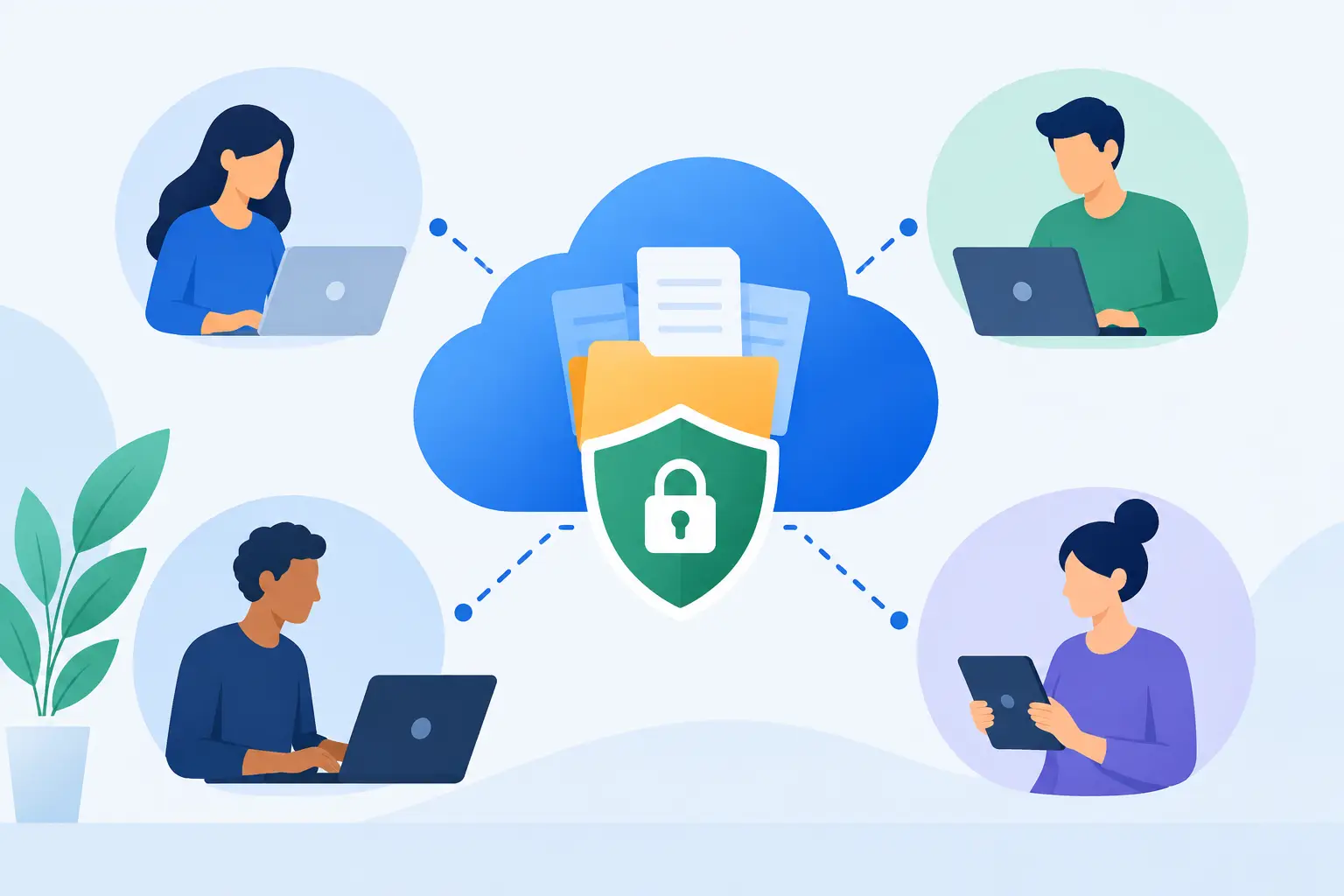
A cloud folder can either make your office faster or create a quiet mess of missing files, duplicate documents, and accidental access. The difference is in the setup. When you configure cloud file sharing around how your people actually work, your team can reach the files they need from the office, a job site, or home without turning sensitive business information into a free-for-all.
For small businesses in DFW, cloud file sharing is not just about replacing a filing cabinet. It is part of a workable mobile office, a paperless workflow, and a plan for keeping the business moving when someone is out of the office. The right system gives staff access without giving everyone the keys to everything.
Start With Your Workflow, Not the App
The most common mistake is choosing a cloud platform first, then tossing every file into one giant shared folder. That may feel productive for a week. Soon, employees cannot tell which estimate is current, former workers still have access, and someone overwrites an important document because there was no process.
Before setting up permissions, map the files your business uses every day. An accounting firm may need separate client, tax, payroll, and internal folders. A contractor may need project folders with estimates, plans, photos, change orders, and invoices. A professional office may need a clear split between client records, operations, human resources, and sales.
Keep the folder structure simple enough that a new employee can understand it quickly. Most small businesses do well with a top-level structure based on departments, clients, or active projects. Pick the model that matches how work enters and moves through your company.
For example, a service company might use a structure like this: Operations contains active jobs, completed jobs, and templates; Administration contains internal policies and vendor records; Finance is restricted to authorized staff; Sales contains prospects, proposals, and approved marketing materials. The goal is not to build a perfect digital library. The goal is to make the next file easy to save and easy to find.
Configure Cloud File Sharing With Role-Based Access
Not every employee needs the same permissions. In fact, broad access is one of the fastest ways to create a security problem or an expensive cleanup project.
Set access by role instead of assigning individual permissions one person at a time whenever possible. Create groups such as Owners, Office Staff, Field Team, Accounting, Sales, and Outside Partners. Then grant each group access only to the folders required for its work.
A field employee may need to view job details and upload photos but should not be able to delete finalized contracts. Your bookkeeper may need accounting records but has no reason to access employee performance documents. A marketing contractor may need approved brand assets but not customer financial information.
Most cloud platforms offer permission levels such as view, comment, edit, upload, and full control. Use the least access necessary. View-only access is a smart choice for policies, approved forms, and completed documents that should not be changed. Editing access belongs with the people who actively maintain a file. Full-control privileges should stay limited to owners and designated administrators.
Separate Internal Files From Shared Client Files
Client portals and shared project folders can improve communication, but they require boundaries. Never place internal notes, pricing strategies, payroll data, or other confidential records in a client-facing folder just because it is convenient.
Create a separate external-sharing area for each client or project. Share only the documents that client needs, and make sure the folder owner understands what belongs there. If a vendor or client no longer needs access, remove it immediately rather than hoping an old share link will not be used.
Avoid public links for sensitive documents. If a platform lets you set a link to expire, require sign-in, or block downloading, use those controls when appropriate. Convenience matters, but the cost of an exposed customer list or tax document is much higher.
Build a Naming System Your Team Will Follow
Cloud sharing cannot fix confusing file names. If employees save documents as “New Quote,” “Final Final,” or “Scan 003,” finding the correct version becomes guesswork.
Agree on a basic naming format before moving files into the shared system. For project work, that could be Client Name – Project – Document Type – Date. For recurring office documents, it might be Department – Document Name – Version. Keep dates in year-month-day format when sorting by date matters, such as 2026-11-15, so files stay in order.
Do not rely on staff members to remember who has the latest copy. Use one shared working document rather than emailing attachments back and forth. Most cloud systems include version history, which can help restore an earlier file after a bad edit or accidental deletion. That feature is valuable, but it is not a substitute for a real backup plan.
Turn On Security Before the First Invitation
A shared folder is only as secure as the accounts that can enter it. Require multi-factor authentication for every user, especially administrators. A password alone is too easy to reuse, steal, or guess.
Use business-managed accounts rather than personal accounts whenever possible. When files live under an employee’s personal login, the company can lose control of critical records when that person leaves. With managed accounts, an administrator can reset access, transfer ownership, and preserve business data.
Review these settings during configuration:
- Require multi-factor authentication for all users.
- Disable anonymous or public sharing unless there is a specific business need.
- Set expiration dates for guest access and external share links.
- Limit who can create new shared folders or invite outside users.
- Enable audit logs and alerts for suspicious sign-ins or large downloads.
- Protect mobile devices with screen locks, encryption, and remote-wipe capability when they hold synced business files.
The right controls depend on the type of information you handle. A business storing medical, legal, financial, or highly confidential client records may need tighter controls, retention rules, and compliance guidance than a business sharing routine project photos. One size does not fit every office.
Keep Cloud Sharing Separate From Backup
Here is the hard truth: sync is not the same as backup. If ransomware encrypts a synced folder, the damaged files can sync to the cloud. If someone deletes a folder and the deletion is not caught before the retention window ends, version history may not save you.
Configure a separate, automatic backup for your cloud data and critical workstations. A good backup strategy keeps recoverable copies apart from the day-to-day sharing system and tests whether files can actually be restored. It should cover the data that would hurt most to lose, including shared documents, financial records, client files, and key application data.
Test restoration before an emergency. Pick a sample folder and recover it to a safe location. If the process is confusing or incomplete, fix it now. Recovery should not be your team’s first experiment during a crisis.
Train the Team on the Rules That Matter
Even a well-designed cloud system fails when nobody knows how to use it. Training does not have to be a long technical lecture. A short, hands-on session can cover where files belong, how to search, what not to share externally, and how to report a suspicious login or missing folder.
Give employees clear answers to everyday questions: Where do I save a new client document? Can I email this file? How do I share a folder with a vendor? What do I do if I accidentally delete something? Who approves outside access?
Write these answers into a one-page cloud sharing policy. Review it when onboarding new staff and whenever your workflow changes. A team that understands the system will spend less time hunting for documents and less time calling the office manager for access.
Review Access as Your Business Changes
Cloud sharing is not a set-it-and-forget-it task. Staff roles change, projects close, vendors rotate, and employees leave. Review user access at least quarterly, and review it immediately when someone exits the business.
Look for inactive accounts, old guest invitations, folders with too many editors, and files that have been shared outside the company without a current reason. Check storage reports as well. A sudden jump in storage use can point to duplicated files, unnecessary device syncing, or an employee saving large media files in the wrong location.
For owner-led businesses, this review is one of the simplest ways to reduce risk without slowing anyone down. It takes far less time than cleaning up after a data exposure.
TechXperts helps North Texas businesses build cloud systems around the way their teams work, including permissions, backup, mobile access, and staff training. The best setup is not the one with the most features. It is the one your people can use confidently every day while your business stays in control of its information.


0 Comments