
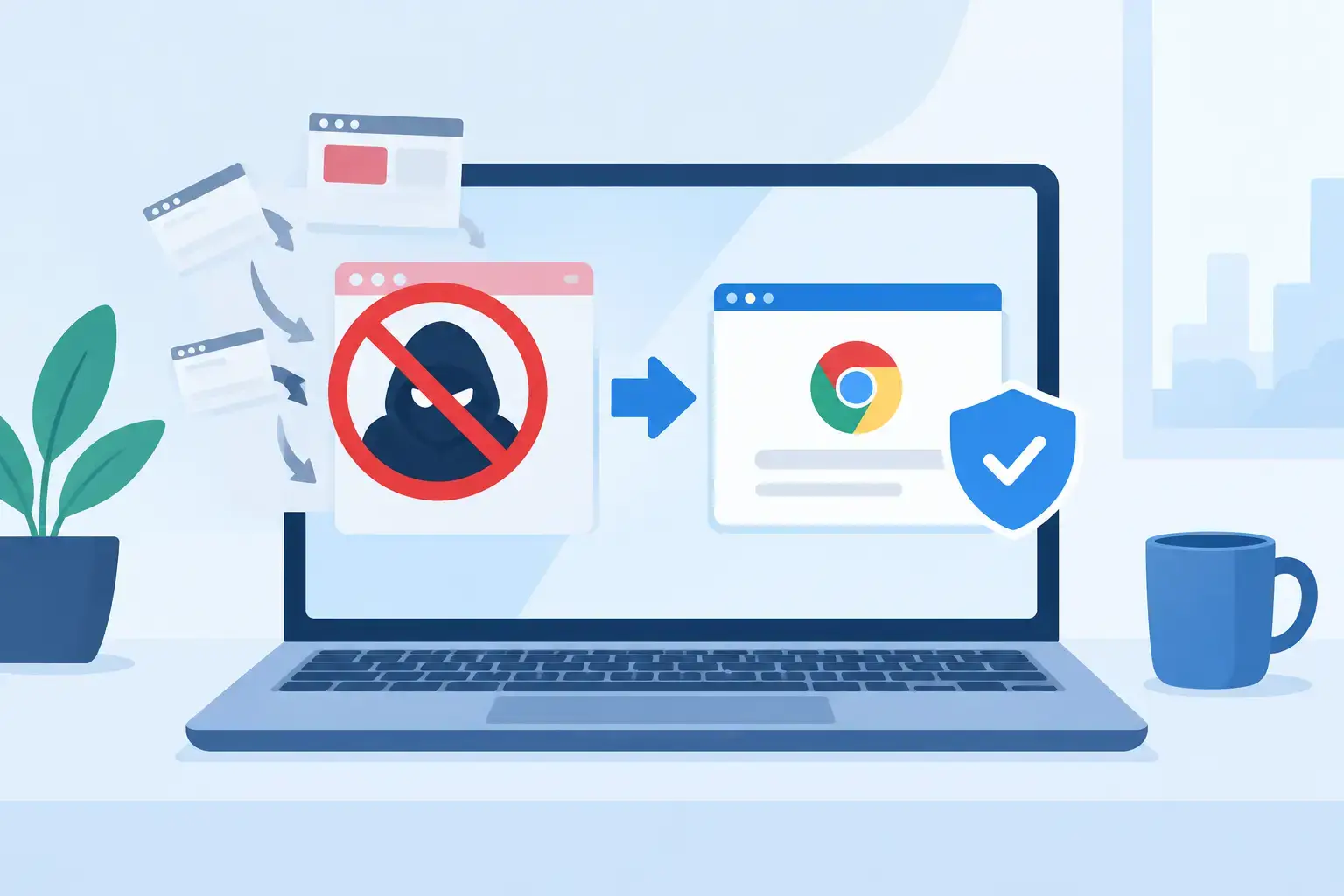
Your browser opens to a search page you never chose. Searches bounce through unfamiliar websites. Ads appear where they did not yesterday, and changing your homepage only works until the next restart. That is the moment to learn how to remove browser hijackers before a nuisance turns into a privacy or security problem.
A browser hijacker is software, a browser extension, or a changed setting that takes control of where your browser goes and how it searches. Some are simply aggressive adware. Others collect browsing data, push questionable downloads, or create an opening for more serious malware. For a home computer, that can mean wasted time and risky clicks. For a small business, it can also mean exposed logins, interrupted work, and employees working around a problem instead of getting work done.
The good news is that most hijackers can be removed methodically. Do not just change the homepage and hope for the best. Find what changed it, remove the source, and check the settings that can quietly put it back.
How to Remove Browser Hijackers Step by Step
Start by closing any sensitive sites, especially banking, email, payroll, cloud storage, or customer-management systems. If the browser is redirecting to suspicious pages or displaying fake security alerts, do not enter passwords, download a so-called cleanup tool, or call a number shown in a pop-up. Legitimate security companies do not lock your browser and demand a phone call.
If you suspect the device has more than a basic browser issue, disconnect it from Wi-Fi or unplug its network cable while you investigate. That is particularly wise if you see new user accounts, ransomware messages, files changing names, or warnings from your security software. A simple hijacker does not always require disconnecting, but unusual behavior deserves more caution.
1. Check what your browser is doing
Write down the unwanted homepage, search engine, redirect address, or extension name before removing anything. This gives you a record if the issue returns. It also helps identify whether the problem is limited to one browser or follows you across Chrome, Edge, Firefox, or another browser.
Test a private or incognito window as well. If redirects disappear there, an extension, cookie, or normal browsing profile is a likely cause. If they continue, look beyond browser data and inspect the computer, router, DNS settings, or a managed business policy.
2. Remove unfamiliar browser extensions
Extensions are one of the most common sources of browser hijackers. Open your browser’s extension or add-on manager and look for anything you do not recognize, no longer use, or did not intentionally install. Be skeptical of extensions that promise coupons, PDF conversion, search enhancements, video downloads, weather updates, wallpapers, or instant access to an AI tool.
Remove questionable extensions, then restart the browser and test again. Do not assume an extension is safe because it has a polished icon or a large number of downloads. Review what permissions it has. An extension that can read and change data on every website has a great deal of access.
For a business computer, pause before removing an extension that may be required for an accounting portal, phone system, password manager, or industry application. Verify with the vendor or your IT provider first. The goal is to remove the unwanted item without breaking a tool your team depends on.
3. Restore your homepage, startup pages, and search engine
A hijacker often changes more than one setting. Check your homepage, pages that open when the browser starts, default search engine, and new-tab behavior. Set each one back to the site or provider you actually want.
Then look for any search engine entries you did not add. Delete unfamiliar providers where the browser allows it. If an unwanted search engine says it is managed by your organization on a personal computer, that is a warning sign. It may be a leftover policy installed by unwanted software, not a real company setting.
4. Clear browsing data and reset the browser if needed
Clear recent browsing data, including cookies and cached files. Cookies alone do not usually install a hijacker, but clearing them can remove tracking data and eliminate persistent redirects tied to a compromised website session.
If the behavior continues after removing extensions and fixing settings, use the browser’s reset feature. Resetting generally restores default startup, search, tab, and extension settings while keeping bookmarks and saved passwords. Still, read the reset screen before confirming because options vary by browser and version.
Export bookmarks first if they are not already synced or backed up. A reset is often effective, but it should be a deliberate cleanup step, not a panicked click.
5. Uninstall recently added programs
Browser hijackers frequently arrive bundled with free utilities, file converters, media tools, game installers, or fake update prompts. Open the list of installed applications and sort by installation date. Remove programs you do not recognize, especially items installed around the time the redirects began.
Names can be vague, so do not remove business-critical software simply because it sounds technical. Search internally for a program name, ask the person who installed the device, or consult your technology partner when unsure. Removing the wrong application can create a different work stoppage.
Also check whether browser shortcuts have been altered. Right-click the browser shortcut, open its properties, and inspect the target field. It should point to the browser application itself, not include an unfamiliar website address after the program path.
6. Run a full security scan
Update your installed security software and run a full scan, not just a quick scan. Let it quarantine or remove detected threats, then restart the computer and scan again if prompted. A second scan helps catch components that were inactive during the first pass.
Use a reputable anti-malware tool if your primary protection finds nothing but the symptoms continue. Avoid search ads for miracle cleanup software. Hijacker victims are often targeted by misleading tools that create more problems than they solve.
After cleanup, install pending operating system and browser updates. Outdated software does not automatically cause hijackers, but unpatched systems give malicious software more ways to gain a foothold.
Check Sync, Network, and Business Settings
If the hijacker returns immediately after you clean the browser, browser sync may be restoring the bad extension or setting. Sign out of browser sync temporarily, clean the affected browser, review synced extensions and settings, then sign back in. You may need to remove the unwanted extension from another computer using the same account.
When every device on the same network is redirected, the browser may not be the real culprit. Check the router’s DNS settings and administrative password. A changed DNS server can send every device toward unwanted destinations even when each browser looks clean. If you are not comfortable changing network settings, get help rather than guessing. A wrong router change can take an office offline.
Small businesses should also look at device-management policies. Company-managed Chrome or Edge installations may intentionally control extensions, homepages, or search providers. That is useful when it protects staff and standardizes tools. It becomes a concern when a policy appears on an unmanaged device or references an organization nobody recognizes.
Change Passwords When There Is a Real Risk
A browser hijacker does not always mean your passwords were stolen. Changing every password immediately can waste time and encourage weak, recycled replacements. The situation depends on what the hijacker did and where you logged in.
Change passwords promptly if you entered credentials on a suspicious page, installed a fake update, saw signs of remote access, or used financial, email, or business accounts while the browser was acting strangely. Start with your primary email account because it is usually the recovery key for everything else. Use unique passwords and multi-factor authentication, and review account sign-in activity for unfamiliar devices.
For a business, alert the person responsible for technology before multiple employees start changing settings independently. A coordinated response preserves evidence, checks other workstations, and reduces the chance that one infected profile spreads the same extension back across the team.
Prevent the Next Browser Hijacker
The most effective prevention is less glamorous than a cleanup tool: install software carefully, keep browsers updated, and give users fewer opportunities to approve things they do not understand. During any installation, choose custom or advanced options when available and decline add-ons that are unrelated to the program you wanted.
Use standard user accounts for daily work instead of administrator accounts whenever practical. Keep reliable security protection active, back up important files automatically, and train staff to recognize fake update notices and scareware pop-ups. A short conversation about suspicious downloads can prevent hours of lost productivity.
For DFW homes and small businesses, TechXperts can help when redirects keep returning, multiple devices are affected, or you need a clean, accountable plan for protecting your systems. The best next step is not to tolerate a browser that feels slightly off. Treat the first unwanted redirect as a signal to investigate, clean it thoroughly, and get back to work with confidence.

0 Comments